Archive for November, 2009
Shoot Raw Update
BJP Vision 09
This Friday (27th November), two of us will attending Vision 09, the annual show organised by the British Journal of Photography. It’s at the Islington Business Centre in London. If you’re going to be there (perhaps to hear Martin Parr or Eugene Richards speak or for a portfolio review) and would like to arrange a quick meeting over a cup of coffee, please drop us a line or call in advance and we can arrange a time. You can get hold of us on 07803 597680. Tickets for Vision 09 cost £10, with portfolio reviews costing an additional £5.
Welcome, BJP readers
Below is an advert that should appear in the excellent BJP in today’s issue (25th November) and again on 2nd December; we’re reaching out to working pros who are looking at optimising their workflow and their existing catalogues, and emerging photographers who want to get things right early on. We’re finding magazine adverts helpful in drawing initial interest. This one might be a bit easier to read when you have the magazine in your hand…

Above: our BJP advert.
One-to-one training—available now
Our current one-on-one raw workflow training, delivered at clients’ studios or offices is of interest mainly to professional photographers who’ve yet to switch to a smooth, quick, raw workflow, including a number who’ve tried already and have encountered obstacles. Mail us or call 020 3092 2907 to find how we get you in complete control of your digital workflow and your existing image library.
Group training—it’s on the way!
We’re aware that there’s demand for lower-cost group sessions for up-and-coming photographers, semi-pros, photography clubs, emerging artists and keen amateurs on smaller budgets.
We’re very keen to arrange group training sessions for groups of around ten to keep the cost down while providing enough time to everyone’s questions. We’ll provide a thorough grounding in a raw workflow based on Lightroom and we’ll answer specific queries. You’ll leave feeling confident enough to get to work on your own workflow, with all your initial questions answered. If you might be interested in something like this early next year, drop us a line. Let us know if you already have a MacBook (or MacBook Pro) with Lightroom installed and when we get enough names, we can arrange some bring-your-own-laptop sessions at a lower cost.
November 23rd, 2009 by Bahi
Protect fine colour detail in Lightroom 2
The colour noise reduction slider in Lightroom is set to 25 by default. In Lightroom 1 and 2, that value is often too high.

Colour noise reduction is subtle
There are some controls in Lightroom that have clear and immediately visible effects but colour noise reduction isn’t one of them. Slide the saturation control a little and you’ll get a pretty good idea of what it’s doing to your image but with colour noise reduction, any change can often be very slight or invisible, particularly at low ISO and certainly as you slide it between its default and zero. So it’s very tempting—particularly if you only shoot at low ISO—to quietly ignore it…
Resist temptation
Left to its own devices, colour noise reduction can remove significant colour detail from some of your images, even when there’s no little or no colour noise present—and you may never know what you’re missing. Take a look at the simple test shot below; it was taken with the camera set to base ISO and f/8, using a sturdy tripod and the fading light of a late November afternoon in London. (If you’re reading this in your e-mail client and see no images, click on the heading of the message to continue reading the piece in your browser.)

Above: the complete image, resized for the web
Below is a 100% crop from the photograph, presented in two versions—one with colour noise reduction left at default (25) and the other with it set to zero. The Lightroom settings are otherwise identical in every way. The difference is quite striking: with the colour noise reduction gone, the subtle colour pattern printed on the paper is suddenly clear and becomes an important part of the picture’s texture. Take a close look.


Top photo: colour noise reduction slider set to 25.
Lower photo: slider set to zero. No other changes.
The only thing it took to reveal that subtle printed detail was to move the colour noise reduction slider away from its default. It’s the same raw file, same sharpening, same JEPG compression on output—same everything. That should give you an idea of how colour NR might affect the fine detail in your work, whether you shoot landscape (subtle tonal variations and detail in in grass and foliage), portraits, product shots or fashion (think of fabric detail). If you offer large, fine-art prints in colour or display large images online, it may pay dividends to pay attention to that harmless-looking slider.
How about Lightroom 3?
As of November 2009, the current beta version of Lightroom 3 has a completely reworked noise-reduction algorithm; like its predecessor, it comes set to 25 by default but that and the name of the slider seem to be about the only things carried over. The new version in Lightroom 3 removes far less valid colour detail from the photograph. Here’s a crop from the same raw file, this time processed in Lightroom 3, with all settings unchanged.

Above: in Lightroom 3 with colour NR set to 25
This time, with the slider left at its default, you can see the printed pattern very clearly. There’s more good news, too: as well as being far less intrusive, the new noise reduction routines in the beta version of Lightroom 3 are also more effective. (We’ll have detailed examples coming up in articles on noise reduction, in which we’ll also look at the surprising differences between a few of the dedicated noise-reduction packages available.)
Our recommendation for Lightroom 2
When you begin to work in Lightroom 2.0, (Amazon UK link), start by leaving the colour NR slider set to zero, increasing it only when you see colour noise. You can best identify colour noise when viewing your work at around 100% to 200% magnification. (That sounds excessive but try it—it makes life easier, particularly when you’re getting started.) In a short time, you’ll be able to choose values for noise reduction that depend on the camera’s ISO setting for the shot, your approach to setting your camera’s exposure and the importance of fine colour detail in your work. Remember to take the images all the way to final output (meaning print, if that’s how the images will end up) before you settle on your starting values.
Presets
When you’ve found your way around these settings, build one-click presets for your commonly used noise-reduction settings and your workflow will speed up considerably. Good use of presets is a big help in achieving a fast, easy raw workflow while maintaining image quality.
Noise reduction, edge masking and sharpening
Even if the odd default value might be a little off, the noise reduction functions in Lightroom (including version 2) are already a lot better than most Lightroom users realise when should be used in conjunction with Lightroom’s edge masking and sharpening controls. When you make the most of these controls, they can produce excellent results. More on that coming up in future articles.
Subscribe (for free) to get all future articles delivered by e-mail or RSS.
A reminder that you can get all our future articles, for free, by e-mail or RSS. Click here for e-mail subscriptions and here for RSS. The e-mail messages are generated and sent automatically to subscribers each morning (UK time) but only on days when there’s new content on the site—no new content means no e-mail. Please pass on our site details to any photographers—professional or amateur—whom you think might find this information useful.
One-on-one training
And another reminder. As always, we’re available for one-on-one training at your studio, home or office and we still have free slots in December 2009 and January 2010. In a day, you can easily get enough information to get you up and running confidently using a raw workflow; alternatively, you can choose to concentrate on particular aspects that are proving a little tricky. Our minimum booking is a half-day in the London area and a full day elsewhere. We’re also putting together phone support packages. Call 020 3092 2907 (regular London landline number) or drop us a line for details.
November 12th, 2009 by Bahi
ASMP creates dpBestflow.org
The American Society of Media Photographers has just launched its new digital photography site, dpBestflow.org, covering a lot of what you need to know about digital photography workflow. We haven’t had time to explore every section yet but so far, it’s looking very thorough and easy to follow. It was funded by the US Library of Congress and is entirely free; its content is also free to share, as long as attribution is provided. It looks very promising, covering workflow, colour management, printing, and best practice in many areas of digital photography.
http://dpbestflow.orgTo begin with, watch the five-minute video overview here.
One tip for UK readers: if you search for topics related to colour management, you’ll want to make sure you’re using American English spelling. There’s plenty of information there on colour management but understandably, a search on “colour” returns no hits right now, while “color” returns five pages of links .
Tucked away at the bottom of the Project Team section is a list of names, under the heading Friends of Bestflow. They include Tom Hogerty, John Nack and the excellent Eric Chan (aka MadManChan), all Adobe employees heavily involved with Adobe Lightroom.
(Via John Harrington.)
November 9th, 2009 by Bahi
Looking for dirt? Keep on moving.
When you’re checking for sensor dust, keep the camera moving during the exposure.
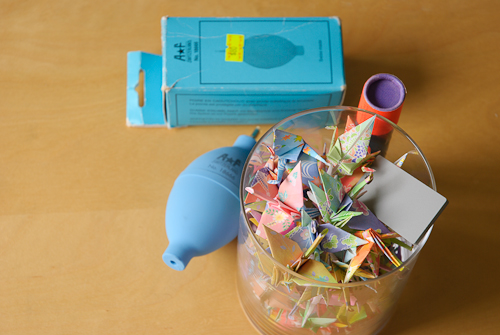
Any detail that remains in the shot represents something that’s moving with your camera and is not part of the scene. Spots on a wall that you’re pointing at, for example, or flecks on a sheet of recycled paper, will all be blurred away to nothing as long as you move the camera enough during the test exposure.
Here’s how most people recommend that you identify sensor dust:
- Set the aperture of your lens to the smallest available. (Beginners might need a reminder that this is the highest f-number; quite often, it will be f/22 or f/32.) The idea is get the greatest depth of field.
- Aim the camera at an area of low detail, like a white piece of paper or a smoothly painted wall.
- Take a well exposed shot that’s bright enough to have the paper appear as a middle-to-bright grey
- Scroll slowly through the image at a high magnification (ideally, on your computer rather than on the camera) and identify the dark marks that are the tell-tale signs of sensor dirt.
- Clean the sensor using your chosen method (there are many but be careful: even though it has a very thin, protective glass coating, the coating and the sensor are easily damaged).
- As step 4; with luck, the sensor shows fewer marks now or perhaps even none.
- Repeat the whole process if necessary till the dust has gone, moving from dry cleaning to wet cleaning if that’s what it takes to shift the dirt.
There are variations—sometimes you’re advised to put the camera on a tripod, sometimes to point at the sky rather than at a wall or piece of paper—but you get the general idea.
The illustration at the beginning of this short article was shot at f/22 with the camera was pointing at an indoor wall lit by daylight and tungsten. The light was low enough to require a 30-second exposure. (In good daylight, you’d need only a fraction of a second.) You can see the sensor dirt quite clearly in this cropped section, displayed at 1:1, even though there wass plenty of texture and detail on the wall. The camera was moving round and round in circles for the entire exposure, meaning that the photographer (me, in this case) met his daily exercise quota as well.
Incidentally, we’ve found that we see the sensor dirt more clearly when manually setting focus to the nearest distance available instead of infinity, at least on the lenses that we used when experimenting with this. That makes sense but again goes against much of the advice out there. Try it and let us know how you got on.
One last thing about sensor dust: when you shoot at wide-open apertures to achieve a shallow depth of field, sensor dust will not appear clearly in your images but as long as it’s there, it will always be reducing contrast and clarity in some part of your image. In short, it’s worth eliminating. (Read your camera’s manual and seek advice if unsure. You can break or scratch the protective layer over your sensor doing this and repairs won’t be covered under warranty.)
Coming up: some information on Lightroom 3, public beta 1, which is free to install and download, even if you’ve never used Lightroom before. (It’s a beta version, which means it will expire.) Also, we’re putting some prices and information together on our courses based on Adobe Photoshop Lightroom—we cover Lightroom at every level, from beginner to advanced. To continue to receive all the free articles here on the blog when they appear, you can subscribe via RSS or by e-mail. Both options are completely free and we do not pass your e-mail address on to third parties. If you find the articles useful, please pass on our URL to others: shootraw.co.uk
November 5th, 2009 by Bahi
Welcome to Shoot Raw
What do we offer photographers like you? Three things.
1) Digital photography workflow training
We provide training for photographers on fast, powerful digital photographic workflow. Our approach to setup and training is friendly and well paced. You will understand the processes, remember the information and be able to put it into practice, delivering higher quality to your clients, faster.
We discuss things carefully with you before suggesting training options; it helps us understand what you’re looking for and helps us provide training that suits your way of working. See our training page for more details and call us to discuss the areas that you feel are holding back the speed, quality or enjoyment of your photographic work and workflow. Our training is for individual photographers or groups. You can call us on (020) 3092 2907 or mail develop@shootraw.co.uk.
2) Support for photographers
We provide support for photographers on digital workflow, digital photography and related questions, including technical issues. Call us if there’s something you’re struggling with or a question you need answered. We’re not salespeople, we’re very approachable and informal and we’re happy to talk. London (020) 3092 2907.
3) Tips, news and articles
We provide articles and news through our blog. They’re free—take a look. We use Google’s Feedburner service to distribute any new articles by e-mail. To sign up to receive each new article the day after we publish it, just visit Google’s sign-up page by clicking here. (Your e-mail address is safe with us— we don’t share it with any other organisation and we don’t abuse your trust.) If you are comfortable using RSS or Atom instead of e-mail, click here.
This blog post is “sticky”, meaning that it always appears on the front page of the site—next time you visit, remember to take a quick look at the post below this one to see if there’s anything new you might have missed.
Telephone (020) 3092 2907. We’s based in Sydenham, South London and do most of our work in London and the South East. We’re available for training throughout the UK.
November 5th, 2009 by Bahi
Manage your images
Digital photography can mean lots of data. We take photographers through the process of importing, keywording and categorisation and the complete workflow for managing projects that involve many shoots, with output in many formats (web, print, CD, iPhone…)
We also help you sort out backup and storage using Lightroom and backup software like Time Machine. Knowing that you can find your photos quickly and reliably gives you the peace of mind to let you get on with getting great shots and helps when a picture editor calls.
On the Shoot Raw blog, we offer this information in the form of short articles. As an example, look at this piece on backup for Lightroom users, telling you what you should do to make sure your images are safe.
You can get new articles e-mailed to you by Google’s Feedburner service or get the RSS or Atom feed.
We offer training for photographers on all technical aspects of raw workflow and post-processing for digital photographers. We offer Lightroom courses in London and the South East, and support for photographers’ technical issues. You can call us on 020 3092 2907 or e-mail us: develop@shootraw.co.uk.
November 5th, 2009 by Bahi
Shoot raw
There are so many reasons to get raw files from your camera instead of JPEGs that it’s difficult to know where to start to list them.
Shooting raw can provide much better colour, resolution and dynamic range. It also allows you to better balance sharpness with noise, to protect highlights and to scale your images. White balance when you shoot raw is suddenly much less of a problem. And as raw converters improve (which they’re doing constantly), images you shoot today will look even better in tomorrow’s software.
At Shoot Raw, we help photographers with every stage of a digital raw workflow, from getting optimal exposures right through to print and creating the best output for the web, for print bureaux and for your client CDs. We show you how to use Lightroom 2 as the management software for your work and as your go-to raw conversion application, integrating smoothly with Photoshop when you need it.
We provide examples in the blog; you can subscribe using RSS or you can get a daily e-mail message sent out to you each morning by Google’s Feedburner service if we’ve published a new article the previous day.
Both options are free.
November 5th, 2009 by Bahi
Control your colours
High quality output demands a colour managed workflow: a carefully profiled computer display, the right settings in your applications for import, processing and export and an understanding of how things work online so that your web site and your clients’ sites look as good as they can. For your printed output, colour profiles will need to take into consideration your choice of printer, paper and ink . We’ll walk you through the entire process, which starts—as usual—with the right exposure.
Unexpected colour shifts when your work appears online? Disappointing prints? Put an end to them now and become confident in your colour workflow!
Our bespoke training can include the colour management information that a photographer needs. You will understand colour spaces, whether to set your camera to shoot in AdobeRGB or sRGB, the mystery of ProPhotoRGB, what effect your camera’s colour settings have on your raw files (hint: not much!) and on your camera’s histograms, what to use when exporting to the web, sending files to clients and sending work to labs for output.
Much of this information will slowly make its way to our blog, which we update regularly with hints and tips. For example, see this article on protecting fine colour detail in Lightroom 2 by moving just one slider from its default position. You can subscribe to the blog by e-mail and receive every new article in your inbox, in full, as soon as it’s published. That service is provided by Google’s Feedburner. Or grab an RSS or Atom feed.
Both options are free. If you have questions or comments, please drop us a line or give us a call. We’re always happy to help out. If we can answer your question in the form of a blog post that helps others, we will. Mail us on develop@shootraw.co.uk or call (020) 3092 2907.
November 3rd, 2009 by Bahi
Get your exposures right
Your camera’s matrix or evaluative meter is fine when time is tight and the light is soft but, however sophisticated that meter might be, to rely on it completely is to leave things to chance. When it really matters, you need to take complete control of exposure—the improvements can be dramatic. We’ll show you how, choosing where to place shadows and highlights in the image instead of having your camera take its best guess at what you’re photographing. Doing this for digital capture is not the same as it was for film—you need to be more protective of highlights and less worried about shadows.
Start well—optimise your exposures
Optimal exposures give you the most robust images—that means more room to manoeuvre in post-production if you intend to work heavily on the look of an photograph. Just as importantly, it means less time attempting to correct things if you’re looking for a straight interpretation of a scene.
End the guessing game
Overexposed skies, unexpectedly blown highlights when photographing white clothing, blocked-up shadows and under-exposed faces that become noisy when corrected… do these things sound familiar? The answer isn’t as simple as “expose to the right”, and the camera’s three-colour histograms are less useful than they might initially seem!
Once you have your camera set up to display genuinely useful histogram information and you take complete control of your metering, you’ll have a new command over your photographing process and it’s very liberating—no more nasty surprises after you transfer your photographs to your profiled computer display.
The Shoot Raw blog
For a steady stream of tips on all these topics and more, take a look at the blog. You can subscribe to it by e-mail (Google’s Feedburner service) or by RSS. Both options are free and allow you receive all the new content as soon as it’s published.
Lightroom courses in London
We provide patient, expert tuition and training on all these subjects—see our training page for Lightroom courses in London and the South East.

November 23rd, 2009 by Bahi